Choose your layout
Flikzi has two layouts. You pick one, you can change your mind at any time, and both are free, with every feature in both.
The two layouts
Big keys (Hive). Big keys that are easy to hit. Tap each key once and the word is guessed. There are 14 hexagon keys, with the letters in groups: abc, def, ghi and so on. You tap once for each letter of a word and Flikzi works out which word you meant. To be exact about a letter, flick towards it. Choose this if you want bigger keys, and don't mind that a few letters share each one.
   !/?   abc   def   ghi   ☺/?123
      ␣   jkl   mno   ␣
   ,/.  pqrs   tuv  wxyz    ⏎
QWERTY. The keyboard you know, a letter on every key: one hexagon for every letter, in the QWERTY rows you already know, with no gaps between the keys. You tap the letters, roughly, and Flikzi reads where each tap landed and fixes the word when you press space. Flicks do the work of the missing keys: flick a letter up for its capital, down for a digit or a mark. You can also slide over a word's letters to type it (glide typing). Choose this if you want the keyboard you already know.
       q w e r t y u i o p
        a s d f g h j k l
      ,  z x c v b n m  .  ⏎
 [?123] [   space bar   ] [☺]
Neither layout has a shift key or a delete key. In both, the space bar deletes: swipe it left. Deleting
For what is the same and what differs, see Hive and QWERTY side by side. For Hive's keys and flicks, see Hive: the big keys.
The first time the keyboard opens
The first time you open Flikzi's keyboard, it shows two pictures in place of the keys, with a line under each:
- Big keys (Hive): Big keys that are easy to hit. Tap each key once and the word is guessed.
- QWERTY: The keyboard you know, a letter on every key.
Under them it says You can change this in settings. Tap one and the keys appear. Until you do, the strip above the keys has no words.
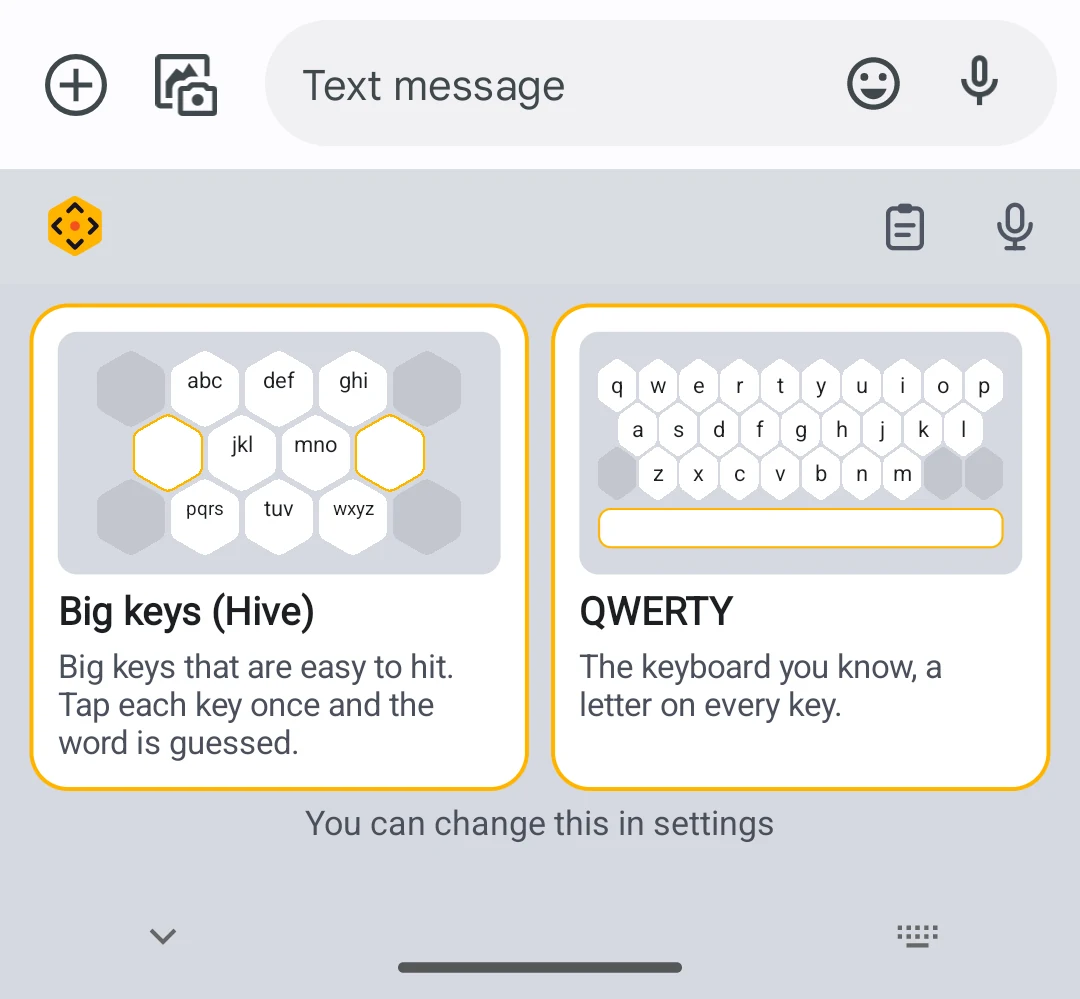
This is the same when you update from an older version. Flikzi doesn't move you to a layout without asking.
The setup card in the Flikzi app has the same choice, under Pick your keys.
Switch in settings
- Open the Flikzi app. From any app you can also tap the Flikzi mark at the left end of the strip above the keys.
- Under Keyboard, the first row is Layout. Tap Big keys (Hive) or QWERTY.
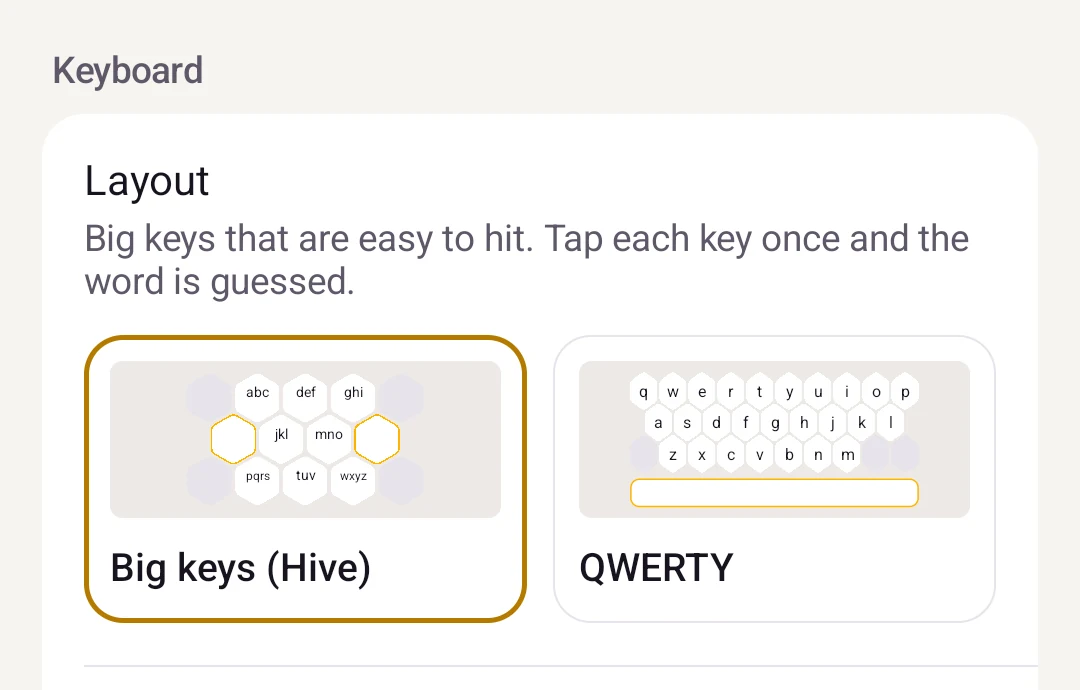
The keyboard changes at once. Try it in the test field near the top of the settings screen.
What is kept when you switch
Nothing is deleted. These are the same in both layouts, so they stay as they are:
- the words Flikzi learned from you, which word you type after which, and your email addresses,
- your text shortcuts,
- your languages: which are on, and the one you're typing in,
- your settings: key height, theme, accent colour, vibration, key sound, the split keyboard and one-handed mode (Reset settings leaves the layout itself as you chose it),
- Flikzi Pro, and the clipboard history.
Flikzi learns where your thumbs land separately for each layout, so each layout gets better at your taps as you use it.
Glide typing is for QWERTY only. While Hive is on, its row in the settings is greyed out and says so.
Pro
Pro is the same in both layouts. Several languages, the split keyboard, voice typing, the clipboard keys, the clipboard history and text shortcuts all work in Hive and in QWERTY. Settings
If your keys changed
Version 0.16 replaced the big keys with QWERTY. If you used the big keys before and want them back, choose Big keys (Hive) as above. My keys changed after an update